How to Monitor Your Website for Visual Changes Automatically
Learn how to set up automated visual monitoring for your production website. Covers scheduled scans, change detection, alerting, and a practical workflow to catch UI issues before your users do.
How to Monitor Your Website for Visual Changes Automatically
Your website can break without anyone touching the code. A CDN update changes font rendering. A third-party script shifts your layout. A CMS editor removes a heading. These changes happen in production, and unless you have automated monitoring in place, users discover them before you do.
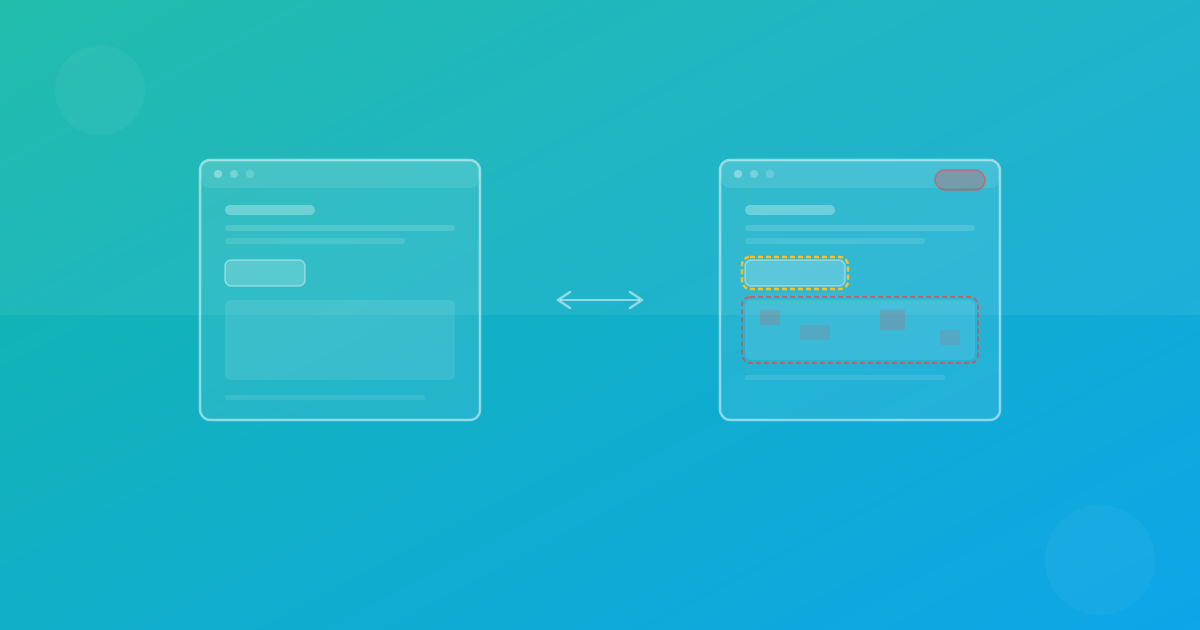
Visual monitoring is the practice of taking regular screenshots of your live website and comparing them against approved baselines. When something changes beyond an acceptable threshold, you get an alert. This guide explains how to set it up, what to monitor, and how to build a workflow that actually works.
Why monitoring production matters
Most teams invest in pre-release testing — CI checks, staging reviews, manual QA — but treat production as a "done" state. In reality, production is where the most damaging visual bugs live:
- Third-party script updates change widget placement, inject banners, or alter font loading.
- CMS content changes by non-engineering team members break layouts when text exceeds expected lengths or images use unexpected aspect ratios.
- Infrastructure changes at the CDN, hosting, or DNS level can affect asset delivery, caching, and rendering.
- Browser updates roll out on user devices without your control. A new Chrome release can change how certain CSS properties render.
Testing in CI catches bugs before deployment. Monitoring catches everything that happens after. Both are necessary for complete visual quality. For a deeper look at how pre-release testing works, see our guide on visual regression testing.
What to monitor
Not every page needs the same monitoring frequency or strictness. Prioritize based on business impact:
High-priority pages
These are pages where a visual bug directly costs you money or trust:
- Homepage — the first impression for most visitors.
- Pricing page — incorrect rendering here can lose conversions.
- Sign-up and login flows — broken layouts block user acquisition.
- Checkout or payment pages — visual errors here cause cart abandonment.
- Primary landing pages — paid traffic destinations must render correctly.
Monitor these daily or even multiple times per day.
Medium-priority pages
- Feature pages — important for SEO and conversion but less volatile.
- Documentation or help pages — content changes happen but rarely cause critical breaks.
- Blog index and key articles — content pages that drive organic traffic.
Monitor these weekly.
Low-priority pages
- Legal pages (terms, privacy policy) — rarely change, low visual complexity.
- Internal admin pages — visible only to your team.
Monitor these monthly or on-demand.
Setting up scheduled scans
The foundation of visual monitoring is a scheduled scan that captures screenshots at regular intervals. Here is a practical approach using a cron-based CI workflow:
name: Visual Monitoring
on:
  schedule:
    - cron: '0 6,14 * * 1-5'  # Twice daily on weekdays

jobs:
  monitor:
    runs-on: ubuntu-latest
    steps:
      - uses: actions/checkout@v4
      - run: npm ci
      - name: Run visual monitoring
        run: npm run test:visual:production
        env:
          SCANU_API_KEY: ${{ secrets.SCANU_API_KEY }}
          TARGET_URL: https://yoursite.com
Key considerations:
- Frequency matches risk: high-priority pages run twice daily, lower-priority pages run less often.
- Use production URLs: monitor what your users actually see, not staging or preview environments.
- Consistent timing: run at the same times each day so you can identify patterns in failures.
ScanU handles scheduled screenshot capture and comparison natively. See How It Works for a walkthrough of the scanning process.
Change detection and thresholds
Not every visual change is a problem. Your monitoring system needs to distinguish between intentional updates and genuine regressions.
Threshold configuration
Set pixel-difference thresholds per page group:
- Strict (0.05–0.1%) for checkout and pricing pages where even minor shifts matter.
- Moderate (0.1–0.5%) for feature and content pages.
- Relaxed (0.5–2.0%) for pages with dynamic content like live data or user-generated content.
Handling expected changes
Some changes are planned: a marketing team updates hero copy, a designer adjusts button colors, an A/B test changes a layout. To prevent these from triggering false alerts:
- Update baselines after planned changes — approve the new screenshots as the reference immediately after deployment.
- Use change windows — if your CMS publishes updates at a known time, skip the scan immediately after and run it an hour later when the content has stabilized.
- Tag intentional changes — annotate baseline updates with ticket numbers or deployment IDs for traceability.
Detecting third-party changes
Third-party scripts are the hardest to predict. A chat widget provider pushes an update, and suddenly your footer layout shifts by 20 pixels. Monitor pages that embed third-party content more frequently and use moderate thresholds to catch layout-level shifts without alerting on minor rendering differences.
Building an alerting workflow
Detection without notification is useless. Set up alerts that reach the right people at the right time:
Immediate alerts
For high-priority pages, send alerts within minutes of detection:
- Email notifications to the on-call engineer or team lead.
- Messaging integration to a dedicated channel where the team can discuss and triage.
Daily digest
For medium and low-priority pages, aggregate changes into a daily summary. This avoids alert fatigue while ensuring nothing is missed over time.
Escalation policy
If an alert is not acknowledged within a defined period (for example, 4 hours for high-priority pages), escalate to a secondary contact. Visual bugs on revenue-critical pages should not wait until someone checks their inbox.
ScanU supports email notifications for completed scan runs. Pair this with your team's existing alerting infrastructure for comprehensive coverage. Check Features for notification options.
Monitoring across browsers and devices
Production monitoring should cover the same browser and device matrix your users operate on. At minimum:
- Chrome desktop (1440×900) — your largest audience segment.
- Chrome mobile (375×667) — mobile traffic typically accounts for 30–50% of visits.
- Safari mobile (375×667) — critical for iOS users.
- Firefox desktop (1440×900) — catches Gecko-specific rendering issues.
ScanU supports Chromium, Firefox, and WebKit with six device presets. For more on building a browser matrix, see our guide on cross-browser testing.
Common monitoring pitfalls
Avoid these mistakes when setting up visual monitoring:
- Monitoring too many pages at once — start with 10–15 critical pages and expand as your process matures.
- Setting thresholds too loose — a 5% threshold will miss most real regressions. Start strict and relax only with evidence.
- Ignoring flaky results — intermittent failures indicate unstable content (animations, lazy loading, ads). Fix the instability rather than raising the threshold.
- Not assigning ownership — every monitored page needs a clear owner who is responsible for reviewing alerts.
- Skipping baseline updates — stale baselines accumulate noise. Review and refresh baselines at least monthly.
A practical monitoring workflow
Here is the complete workflow from setup to ongoing operation:
- Select your critical pages — identify 10–15 pages that drive the most traffic and revenue.
- Choose your browser and device matrix — match your analytics data. Start with 2–3 combinations.
- Capture initial baselines — take reference screenshots and approve them as your starting point.
- Configure scan schedules — daily for high-priority, weekly for medium, monthly for low.
- Set thresholds per page group — strict for revenue pages, moderate for content, relaxed for dynamic pages.
- Connect alerts — email, team messaging, or both, with escalation for unacknowledged issues.
- Review and triage — when an alert fires, classify the change as intentional, regression, or noise.
- Update baselines — after intentional changes, approve the new reference. Add a note explaining why.
- Monthly review — assess false-positive rates, adjust thresholds, and expand page coverage.
Continue with ScanU
Automated visual monitoring turns your production website from a blind spot into a watched environment. ScanU provides scheduled screenshot capture, baseline comparison, and email alerting so your team knows about visual changes before users report them. Explore plan options on Pricing, see the platform in action on How It Works, and check implementation details in the FAQ.