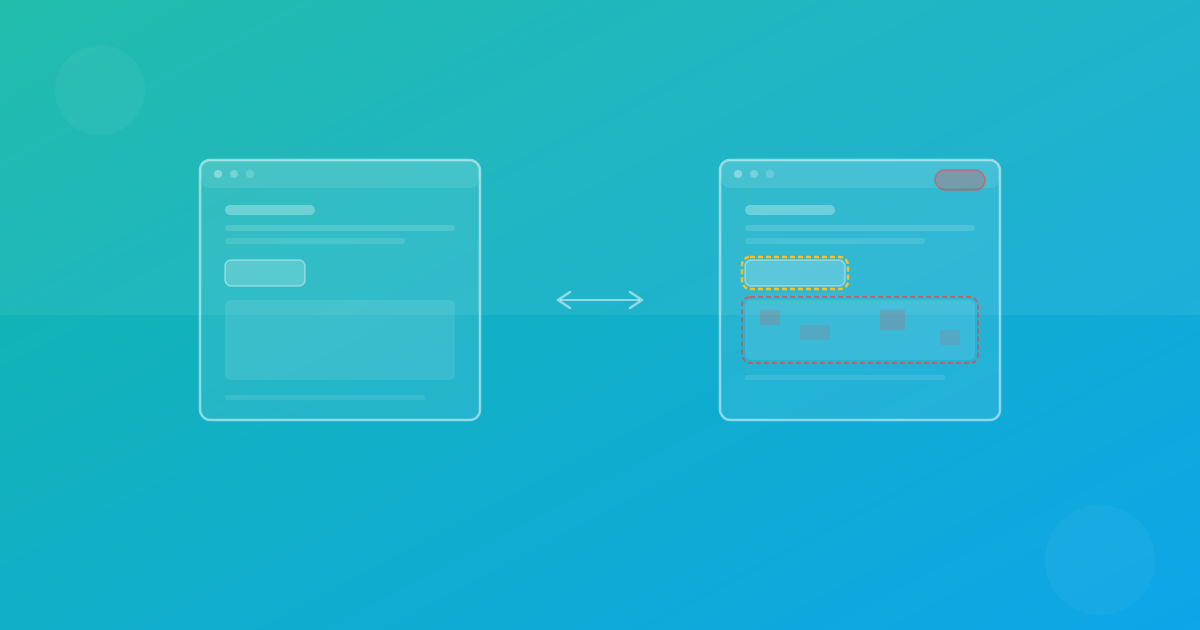
Automating Screenshot Testing in CI/CD: From Pull Request to Release
A step-by-step guide to automating screenshot testing in your CI/CD pipeline. Covers PR checks, branch previews, scheduled scans, alerting, flaky UI handling, and the review process.
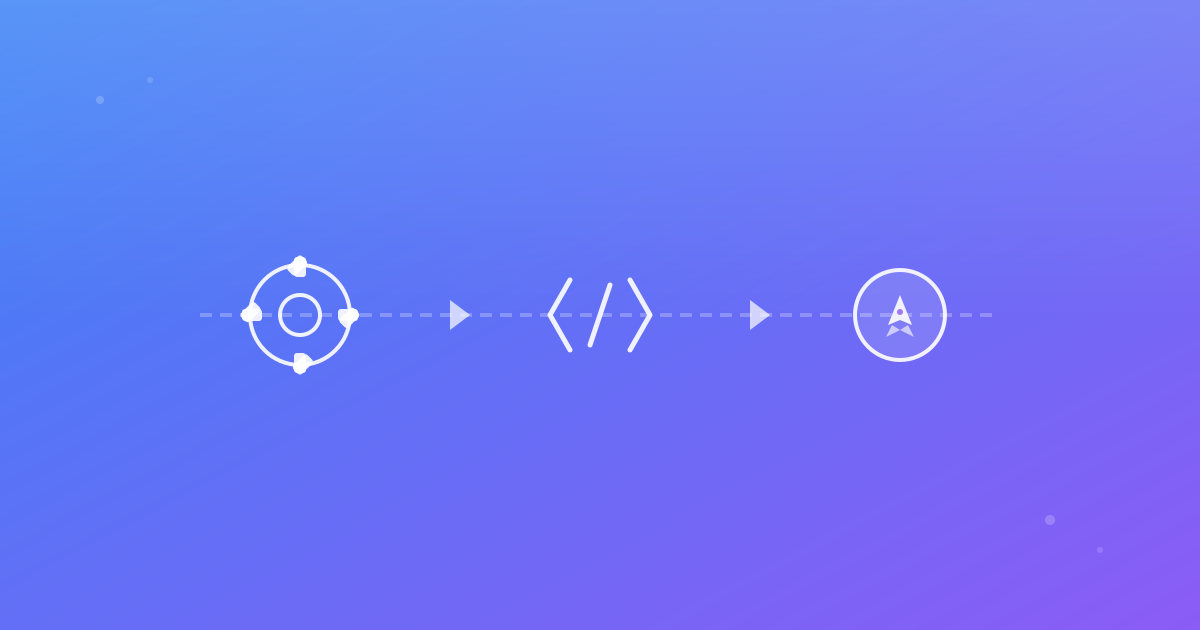
Automating Screenshot Testing in CI/CD: From Pull Request to Release
Manual screenshot checks do not scale. As your application grows, the number of pages, browsers, and device combinations makes it impossible to verify every visual change by hand. Automating screenshot testing in your CI/CD pipeline turns visual quality from a manual spot-check into a reliable, repeatable gate.
This guide walks through the complete flow: from triggering tests on pull requests to handling flaky UI, setting thresholds, and building a review process your team will actually follow.
Why automation matters for screenshot testing
Manual visual QA has three fundamental problems:
- Inconsistency — different reviewers catch different things. What one person notices, another misses.
- Slowness — checking 20 pages across 3 browsers and 3 devices means 180 screenshots to review manually. That does not happen on every PR.
- Lack of history — without automated baselines, there is no record of what the UI looked like last week, last month, or before a specific release.
Automated screenshot testing solves all three: it is consistent, fast, and maintains a complete history of your UI state.
The end-to-end flow
Here is how automated screenshot testing fits into a typical CI/CD pipeline:
Step 1: Pull request triggers a test run
When a developer opens or updates a PR, the CI pipeline captures screenshots of the application in its current state. The test runs against a preview deployment or a locally built version of the app.
Step 2: Screenshots are compared against baselines
Each screenshot is compared pixel-by-pixel against an approved baseline. Regions that differ beyond the configured threshold are flagged.
Step 3: Results are posted to the PR
The CI job posts a summary to the PR: how many pages changed, which browsers/devices are affected, and links to the diff viewer. Reviewers can see exactly what changed without leaving their code review workflow.
Step 4: Team reviews and decides
For each flagged diff, the reviewer classifies it:
- Intentional change — approve and update the baseline.
- Regression — reject and fix the code.
- Noise — investigate the cause (flaky rendering, dynamic content, threshold tuning).
Step 5: Merge gate enforces policy
Based on the review, the CI check passes or fails. High-risk pages can block the merge entirely. Lower-risk pages can use a warning-only policy.
Step 6: Release with confidence
After merge, the updated baselines become the new reference point. Subsequent PRs compare against this fresh baseline, keeping the comparison chain current.
Setting up PR checks
The PR check is the most important integration point. Here is a practical GitHub Actions configuration:
name: Screenshot Tests
on:
  pull_request:
    branches: [main]

jobs:
  screenshots:
    runs-on: ubuntu-latest
    steps:
      - uses: actions/checkout@v4

      - uses: actions/setup-node@v4
        with:
          node-version: 22

      - name: Install dependencies
        run: npm ci

      - name: Build application
        run: npm run build

      - name: Run screenshot tests
        run: npm run test:visual
        env:
          SCANU_API_KEY: ${{ secrets.SCANU_API_KEY }}

      - name: Upload diff artifacts
        if: failure()
        uses: actions/upload-artifact@v4
        with:
          name: visual-diffs
          path: test-results/
          retention-days: 14
Key points:
- Pin your Node version for consistent builds.
- Upload diff artifacts on failure so reviewers can inspect the actual images.
- Store API keys as secrets, never in code.
Branch previews and staging environments
For the most accurate results, run screenshot tests against a deployed preview environment rather than a local build. Preview deployments (Vercel, Netlify, Cloudflare Pages) provide a URL that matches production behavior more closely than localhost.
The workflow becomes:
- PR triggers a preview deployment.
- Once the preview is live, trigger the screenshot test against the preview URL.
- Compare results against the main branch baseline.
This approach catches environment-specific issues (CDN fonts, production CSS, server-rendered content) that local builds might miss.
Scheduled scans for broad coverage
PR checks should be fast, so they typically cover only high-priority pages. Complement them with scheduled scans that cover your full page inventory:
on:
  schedule:
    - cron: '0 3 * * 1-5'  # Weekdays at 3 AM

jobs:
  broad-scan:
    runs-on: ubuntu-latest
    steps:
      - uses: actions/checkout@v4
      - run: npm ci
      - run: npm run test:visual:full
Scheduled scans run against your production or staging URL and test all pages across all browsers and breakpoints. They catch regressions that slipped through the narrower PR matrix.
Alerting and notifications
Automated tests are useless if nobody sees the results. Configure alerts for:
- Failed PR checks — post a comment on the PR with a diff summary and link to the comparison dashboard.
- Scheduled scan regressions — send an email notification to the page owner or post to a team channel.
- Threshold breaches — alert when a page consistently fails above a certain diff percentage across multiple runs.
ScanU supports email notifications for completed runs. Pair this with your CI platform's notification system for comprehensive coverage. See Features for details on notification options.
Handling flaky UI in screenshot tests
Flaky visual tests are the number one reason teams abandon screenshot testing. Address the common causes proactively:
Animations and transitions
Disable CSS animations during capture, or wait for them to complete. A simple approach:
/* Applied only during screenshot capture */
*, *::before, *::after {
  animation-duration: 0s !important;
  transition-duration: 0s !important;
}
Dynamic timestamps and dates
Replace live timestamps with fixed values in your test environment. If your app shows "Updated 2 minutes ago," that will produce a diff on every run.
Lazy-loaded content
Wait for all images and lazy-loaded sections to finish loading before capture. Network timing differences between CI runs cause inconsistent screenshots.
Third-party widgets
Chat widgets, analytics banners, and cookie consent popups change frequently. Mask these regions or load them in a deterministic state during tests.
Font loading races
Web fonts that load asynchronously can cause layout shifts. Use document.fonts.ready or a font-loading strategy that ensures fonts are rendered before capture.
Setting and tuning thresholds
Thresholds control how much pixel difference is allowed before a test fails. Getting them right is critical:
Start strict, relax carefully
Begin with a low threshold (for example, 0.1% pixel difference). When you encounter legitimate noise, increase the threshold for specific page groups rather than globally.
Segment by page type
- Revenue-critical pages (pricing, checkout): strict threshold, blocking policy.
- Content pages (blog, docs): moderate threshold, warning policy.
- Marketing pages with dynamic elements: relaxed threshold, informational only.
Track threshold changes
Document every threshold adjustment with a rationale. If thresholds only move upward over time, investigate whether real regressions are being masked.
The review process that works
The best tools in the world fail if the review process is broken. Here is a review workflow that scales:
- CI posts a structured summary — number of changes, affected pages, severity level.
- Reviewer opens the diff viewer — side-by-side, overlay, or highlight mode to understand the change.
- Reviewer checks context — which browser, which device, which page state. A diff on Firefox mobile is different from a diff on Chrome desktop.
- Reviewer decides — approve (update baseline), reject (fix the code), or defer (needs investigation).
- Decision is documented — a short note explaining the reasoning. This helps future reviewers and creates an audit trail.
Step-by-step: from zero to automated screenshot testing
If you are starting from scratch, follow this sequence:
- Choose your critical pages — pick 10–15 pages that represent your most important user journeys.
- Set up a project in ScanU — add your pages and select browser/device combinations. See How It Works for a walkthrough.
- Capture initial baselines — run your first test and approve the results as your starting baseline.
- Add a CI job — configure your CI to trigger screenshot tests on every PR using the configuration above.
- Define your review policy — decide which pages block merges and which are warning-only.
- Run your first PR test — open a PR with a visual change and verify the workflow end to end.
- Expand gradually — add more pages, more browsers, and scheduled scans as confidence grows.
Metrics to track
Measure these to ensure your screenshot testing investment is paying off:
- Pre-merge regressions caught — how many visual bugs are stopped before reaching production.
- False-positive rate — what percentage of failures are noise rather than real issues. Target below 10%.
- Mean time to review — how long diffs wait before being reviewed. Keep under 4 hours for PR checks.
- Post-release visual incidents — UI bugs reported by users after deployment. This should decrease over time.
- Coverage percentage — what fraction of your critical pages have active visual tests.
Continue with ScanU
Automating screenshot testing does not require complex infrastructure. ScanU handles screenshot capture, baseline management, and diff generation so your team can focus on reviewing results and shipping with confidence. Compare plans on Pricing, see implementation details in the FAQ, and explore the full platform on Features.