How to Set Up Automated Visual Monitoring for Your Website in Under 5 Minutes
Stop checking your website manually after every update. Learn how to set up automated visual monitoring with cross-browser screenshots, pixel-level diffs, and instant alerts — in just a few minutes.
How to Set Up Automated Visual Monitoring for Your Website in Under 5 Minutes
You updated a plugin, merged a pull request, or changed a CSS file. Everything looked fine in your browser. But did you check Safari? Did you check mobile? Did you check the other 15 pages that might have been affected?
Most teams do not — because manual checking takes too long and is easy to skip under deadline pressure.
Automated visual monitoring solves this by capturing screenshots of your website across browsers and devices on a schedule, comparing them against known baselines, and alerting you when something changes. And with the right tool, setting it up takes less than five minutes.
What Visual Monitoring Actually Does
Visual monitoring is an ongoing, automated process that:
- Captures screenshots of your selected pages across chosen browsers and device sizes
- Compares each new screenshot against a saved baseline using pixel-level diff algorithms
- Highlights visual differences so you can see exactly what changed
- Notifies you via email or Slack when changes are detected
- Repeats automatically on a schedule you define — daily, weekly, or custom
This catches the changes that slip through other forms of testing: CSS regressions, layout shifts from content changes, third-party script side effects, and browser rendering differences.
Step 1: Create an Account and Your First Project
Start by signing up at ScanU.eu. No credit card is required for the free tier, which includes 500 screenshots per month — enough to set up monitoring for your most important pages.
Once logged in, create a new project:
- Give it a descriptive name (e.g., "Company Website" or "Client — Acme Store")
- Enter the base URL of the site you want to monitor
That is it for project setup. No configuration files, no local installations, no CLI tools to install.
Step 2: Select Your Pages
Choose which pages to monitor. You can enter URLs manually or use ScanU's automatic page discovery, which reads your sitemap to find available pages.
Focus on the pages that matter most:
- Homepage — your highest-traffic entry point
- Key landing pages — where conversion happens
- Product or service pages — where customers make decisions
- Contact or signup pages — where forms need to render correctly
- Navigation-heavy pages — where menus and layouts are complex
Start with 5 to 10 pages. You can always add more later.
Step 3: Choose Browsers and Devices
Select which browsers and devices you want to test. ScanU supports three browser engines:
- Chrome (Chromium) — the most widely used desktop and mobile browser
- Firefox — important for developer and technical audiences
- Safari (WebKit) — critical for iOS users, where all browsers use the WebKit engine
For devices, choose from the built-in presets that match your audience. A practical starting set:
- Mobile: iPhone 15, Samsung Galaxy S24 — covers iOS and Android
- Tablet: iPad (10th gen) — the most common tablet
- Desktop: 1920×1080 — the standard laptop and monitor resolution
This combination gives you solid cross-browser, cross-device coverage without using too many credits. The free tier includes 10 device presets; paid plans offer up to 100+.
Step 4: Run Your First Test and Establish Baselines
Click "Run Test" to capture your initial screenshots. ScanU's cloud infrastructure handles everything — browser rendering, page loading, screenshot capture — in the background.
Within minutes, your dashboard shows the captured screenshots for each page, browser, and device combination. These first screenshots become your baselines — the reference point for all future comparisons.
Review the baselines to make sure they look correct. If your site was in a temporary state (maintenance mode, A/B test variation), wait until it is in its normal state before establishing baselines.
Step 5: Set Up Scheduled Monitoring
Now set up automated monitoring so you do not have to run tests manually:
- Navigate to the Monitors section of your project
- Create a new monitor
- Set the schedule — daily checks are a good default for active sites; weekly works for more stable sites
- Select your timezone
- Activate the monitor
From this point forward, ScanU automatically runs visual tests on your defined schedule, compares the results against your baselines, and flags any visual changes.
Optional: Configure Notifications
To get alerted when visual changes are detected, set up notifications:
- Email notifications are available on all paid plans and send summaries when test runs detect differences
- Slack integration lets you route alerts to a specific channel, so your team sees visual regression alerts alongside their normal workflow
For Slack, connect your workspace through the Integrations settings, then select which channel should receive alerts for each project.
What Happens When Changes Are Detected
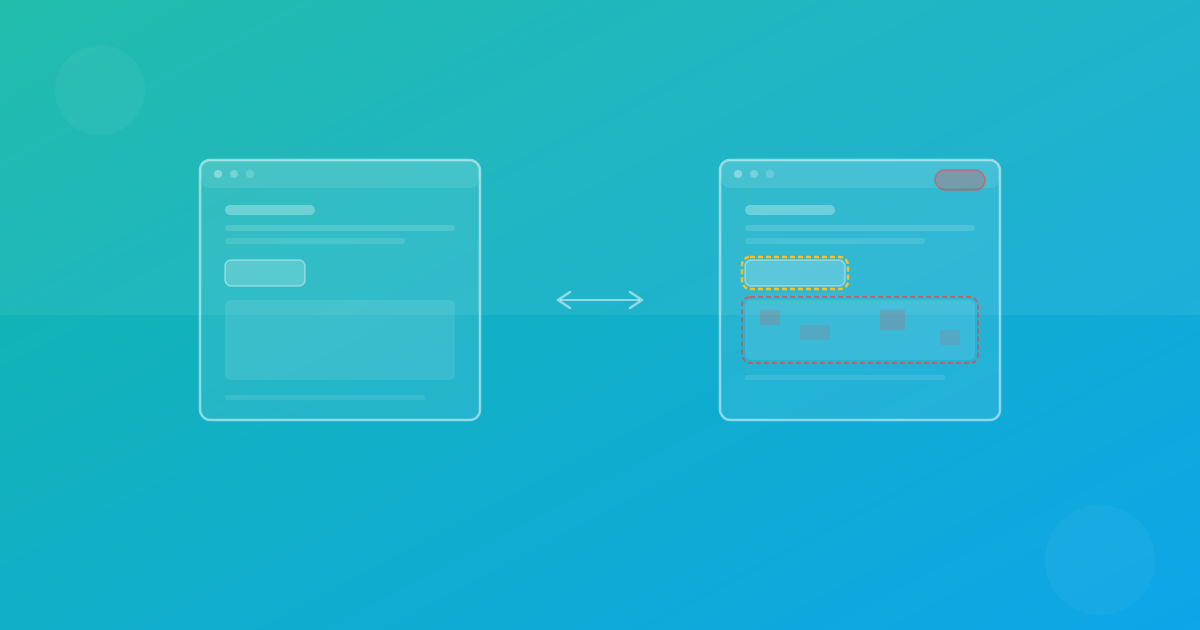
When a scheduled test detects visual differences, you will see them in your dashboard as highlighted diffs. For each changed page, you get:
- The baseline screenshot — how the page looked before
- The current screenshot — how it looks now
- The diff overlay — a visual highlight of exactly what changed, with changed pixels marked in red
- A diff percentage — how much of the page changed, accurate to two decimal places
From here, you decide:
- Approve the change if it was intentional (e.g., you updated a banner). This creates a new baseline.
- Investigate the change if it was unexpected. Check recent deployments, CMS updates, or third-party script changes.
- Fix the regression if it is a bug, then run a new test to confirm the fix.
Practical Tips for Effective Visual Monitoring
Set your diff threshold appropriately. ScanU allows configuring the diff threshold per project, from 0.1% to 10%. For most sites, the default 1% works well. Lower thresholds catch more subtle changes but may flag rendering noise. Higher thresholds focus only on significant layout shifts.
Start small and expand. Begin with your five most critical pages across two or three devices. Once you are comfortable with the workflow, add more pages and devices to increase coverage.
Review diffs promptly. Scheduled monitoring only helps if someone reviews the results. Set up Slack or email notifications to make sure alerts reach someone who can act on them.
Establish baselines intentionally. When you make a planned visual change (redesign, new campaign, updated branding), run a test and approve the new baselines. This prevents false positives on subsequent monitoring runs.
Coordinate with deployments. Run a comparison test before and after deployments to catch regressions immediately. Scheduled monitoring is a safety net, not a replacement for pre-deployment testing.
What This Costs
ScanU's free tier gives you 500 screenshots per month, 1 project, and 10 device presets. This is enough to monitor a small site across a few key configurations.
For more comprehensive monitoring, paid plans start at €19/month (Pro) with 3,000 screenshots, 5 projects, and 35+ device presets. All plans include Chrome, Firefox, and Safari testing with no per-browser surcharges.
All data is hosted in Frankfurt, Germany, making the service GDPR-focused by default — an important consideration for European teams and businesses serving EU customers.
Start Monitoring Now
Setting up visual monitoring does not require DevOps expertise, local infrastructure, or a dedicated QA team. With ScanU, you can go from zero to automated cross-browser monitoring in under five minutes.
Create your account, set up your first project, and run your first test. You will have baseline screenshots across browsers and devices before your coffee gets cold.