How Automated Screenshot Testing Helps Teams Detect UI Bugs Faster
Discover how automated screenshot testing accelerates UI bug detection. Learn why manual QA falls behind, how screenshot comparison works in practice, and what teams gain by automating their visual testing workflow.
How Automated Screenshot Testing Helps Teams Detect UI Bugs Faster
UI bugs are expensive. Not because they are hard to fix, but because they are hard to find. A misaligned button, a clipped headline, or a broken layout at a specific viewport width can live in production for days before someone notices. By then, users have already seen it, and the team is firefighting instead of building.
Automated screenshot testing changes this dynamic. Instead of relying on human eyes to spot every visual problem, teams use automated tools to capture, compare, and flag visual differences the moment they are introduced. This article explains how it works and why it makes teams significantly faster at catching UI bugs.
The problem with manual visual QA
Manual visual testing means someone opens the application in a browser, navigates through pages, and looks for things that seem wrong. This approach has several fundamental limitations.
It does not scale
A typical web application has dozens of pages, each rendering differently across multiple browsers and viewport sizes. Testing 30 pages across 3 browsers and 4 viewport sizes means checking 360 combinations. No one does this manually for every pull request.
It is inconsistent
Different people notice different things. One reviewer might catch a font weight change but miss a spacing issue. Another might focus on desktop layouts and skip mobile entirely. Manual testing quality depends entirely on who is doing it and how much time they have.
It is slow
Manual visual checks add hours to the release cycle. When teams are under pressure to ship, visual QA is often the first thing that gets shortened or skipped. The result is that bugs reach production that would have been caught with a more systematic approach.
It lacks history
Without baselines, there is no record of what the UI looked like before a change. When a visual bug is reported, the team has to figure out when it was introduced by digging through commits. Automated baselines provide a clear timeline.
How automated screenshot testing works
Automated screenshot testing replaces the manual process with a systematic, repeatable workflow.
Capturing screenshots programmatically
Automated tools render your pages in real browsers, either headless or managed cloud instances, and capture screenshots at specified viewport sizes. This happens without human intervention and produces consistent results every time.
The capture process typically covers:
- Multiple browsers — Chromium, Firefox, and WebKit to catch cross-browser rendering differences
- Multiple viewports — desktop, tablet, and mobile widths to verify responsive design testing
- Multiple pages — every route or page that matters to your users
- Specific states — logged-in views, empty states, error pages, and other UI variations
Comparing against baselines
Each new screenshot is compared against a stored baseline, the last approved version of that page. The comparison happens at the pixel level, with configurable thresholds to filter out rendering noise like sub-pixel anti-aliasing differences.
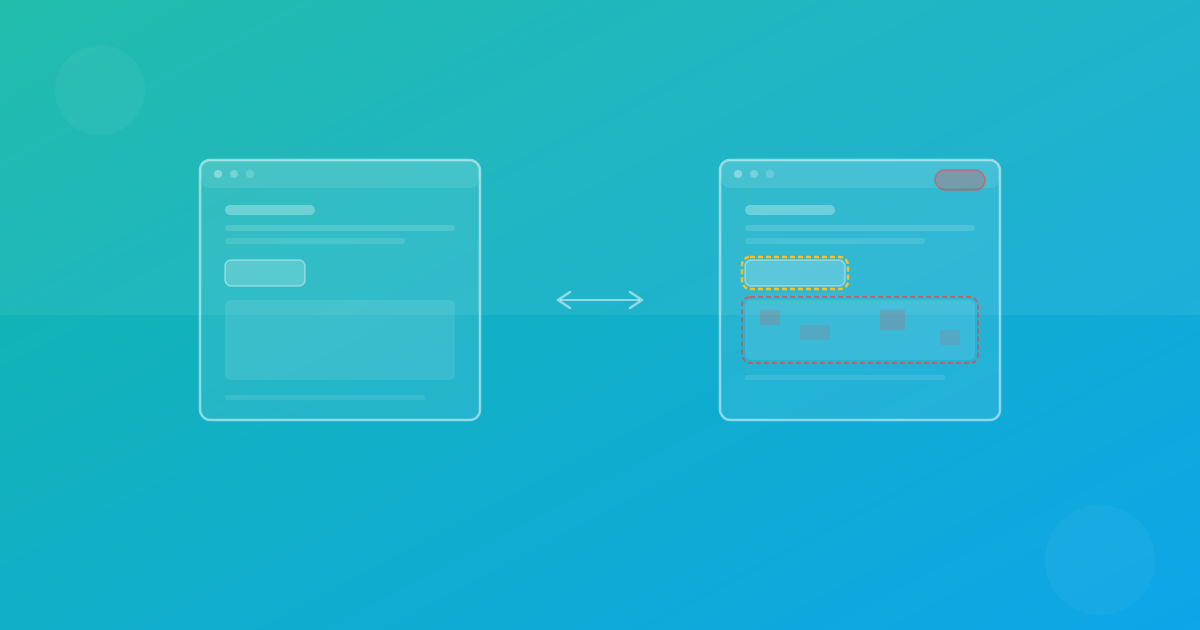
When the tool finds a difference that exceeds the threshold, it generates a visual diff highlighting exactly which regions changed. This makes it immediately clear what is different without requiring someone to visually scan the entire page.
Reporting results in context
The best automated screenshot testing tools report results where your team already works. That means posting diff summaries as pull request comments, updating status checks in your CI pipeline, or linking to a review dashboard. When visual changes appear alongside the code that caused them, the feedback loop is tight.
What makes automated testing faster than manual QA
Speed is the primary advantage, but it comes from several factors working together.
Parallel execution
Automated tools capture screenshots across all browsers and viewports simultaneously. What would take a manual tester hours happens in seconds. A full suite covering 20 pages across three browsers and two viewports can complete in under a minute with a platform like ScanU.
Immediate feedback
When integrated with CI/CD, automated screenshot tests run on every pull request. Developers see visual diffs within minutes of pushing code, while the change is still fresh in their mind. This is dramatically faster than discovering a visual bug days later in a staging review.
Consistent coverage
Every test run checks the same pages, the same browsers, and the same viewports. Nothing gets skipped because someone was in a hurry. The coverage is identical whether it is Monday morning or Friday afternoon before a release.
Precise diff highlighting
Instead of scanning entire pages looking for something wrong, reviewers see exactly which pixels changed. This turns a 30-minute manual review into a 2-minute focused check. The diff tells you where to look, so you spend your time deciding whether the change is acceptable rather than hunting for it.
Real-world scenarios where automated screenshot testing catches bugs
CSS refactoring side effects
A developer refactors a shared CSS utility class to improve code organization. The change is clean and passes code review. But it subtly affects the spacing of a component used on 15 different pages. Automated screenshot testing flags all 15 pages in the pull request, before the change is merged.
Dependency updates
The team upgrades a UI component library from version 4.2 to 4.3. The changelog mentions "minor style adjustments." Automated screenshots reveal that button border-radius changed from 4px to 6px, dropdown menus shifted by 2 pixels, and the modal overlay opacity decreased. Each change can be reviewed and accepted or flagged as a problem.
Responsive breakpoint regressions
A developer adds a new section to the homepage that looks great at desktop width. Automated screenshot testing at tablet and mobile viewports reveals that the new section pushes the existing content off-screen at 768px and creates horizontal scrolling at 375px. The issue is caught in the PR, not in production.
Cross-browser rendering differences
A CSS grid layout renders perfectly in Chrome but produces a visible gap in Firefox due to a difference in how the two browsers handle grid-gap with certain configurations. Cross-browser testing with automated screenshots catches this before users on Firefox encounter it.
Content-driven layout breaks
A product team updates copy on the pricing page, making one plan description significantly longer than the others. The longer text breaks the equal-height card layout on tablet viewports. Screenshot testing at multiple widths catches the overflow immediately.
Building an effective automated screenshot testing workflow
Choose what to test
Start with pages that have the highest user traffic and business impact. Your homepage, pricing page, signup and login flows, and primary product views are good starting points. You do not need 100% page coverage on day one.
Define your testing matrix
Select browsers and viewports based on your analytics data. If 85% of your traffic comes from Chromium and 10% from Safari, start with Chromium and WebKit. Add Firefox for comprehensive cross-browser testing as your process matures.
Integrate with your CI/CD pipeline
Run screenshot tests automatically on every pull request. Block merges when unreviewed visual diffs exist, just as you would block merges on failing unit tests. This ensures visual quality is checked consistently. See How It Works for integration details.
Establish a review process
Assign visual review responsibilities by area. The team that owns the checkout flow reviews checkout diffs. The design team reviews marketing page diffs. Clear ownership prevents diffs from being ignored.
Manage baselines deliberately
When a visual change is intentional, update the baseline with a note explaining why. Never auto-approve baseline changes. Every update should be a conscious decision with context for future reviewers.
Common concerns addressed
"We do not have time to add another testing step"
Automated screenshot testing saves time by catching bugs earlier. A visual bug caught in a pull request takes minutes to fix. The same bug found in production requires investigation, a hotfix, and possibly an incident review. The net time investment is negative.
"Our designers review every release anyway"
Designer review is valuable but limited. Designers typically review mockup-to-implementation fidelity, not regression across every page and viewport. Automated testing handles the regression detection so designers can focus on intentional design decisions.
"We tried visual testing and got too many false positives"
False positives usually come from unstable test environments: inconsistent fonts, dynamic content, or animations captured mid-transition. Stabilize your environment with consistent test data, font preloading, and animation disabling. Modern platforms like ScanU include threshold tuning and region masking to minimize noise.
How ScanU accelerates UI bug detection
ScanU is designed to make automated screenshot testing fast and practical. The platform handles the infrastructure, so your team focuses on reviewing results rather than managing browsers and screenshot pipelines.
Key capabilities:
- Fast parallel capture across Chromium, Firefox, and WebKit
- Responsive testing at any viewport size you configure
- CI/CD integration with automatic PR checks
- Pixel-level diff highlighting for fast, focused reviews
- Baseline management with approval workflows and audit history
Explore plan options on Pricing, browse the full capability list on Features, or check common questions in the FAQ.
Conclusion
Automated screenshot testing does not replace your existing testing strategy. It completes it. Unit tests check logic, integration tests check behavior, and screenshot tests check appearance. Together, they cover the full spectrum of what can go wrong.
The teams that adopt automated visual testing consistently report fewer visual bugs in production, faster release cycles, and less time spent on manual QA. The tooling has matured to the point where getting started is straightforward and the return on investment is immediate.
If your team is still relying on manual visual checks, every deployment is a gamble. Automated screenshot testing removes that uncertainty and lets you ship with confidence.