Responsive Testing Across Every Device Without Losing Your Mind
Testing responsive layouts manually is a losing battle. Here is how to automate visual testing across every viewport that matters to your users.
The Viewport Explosion
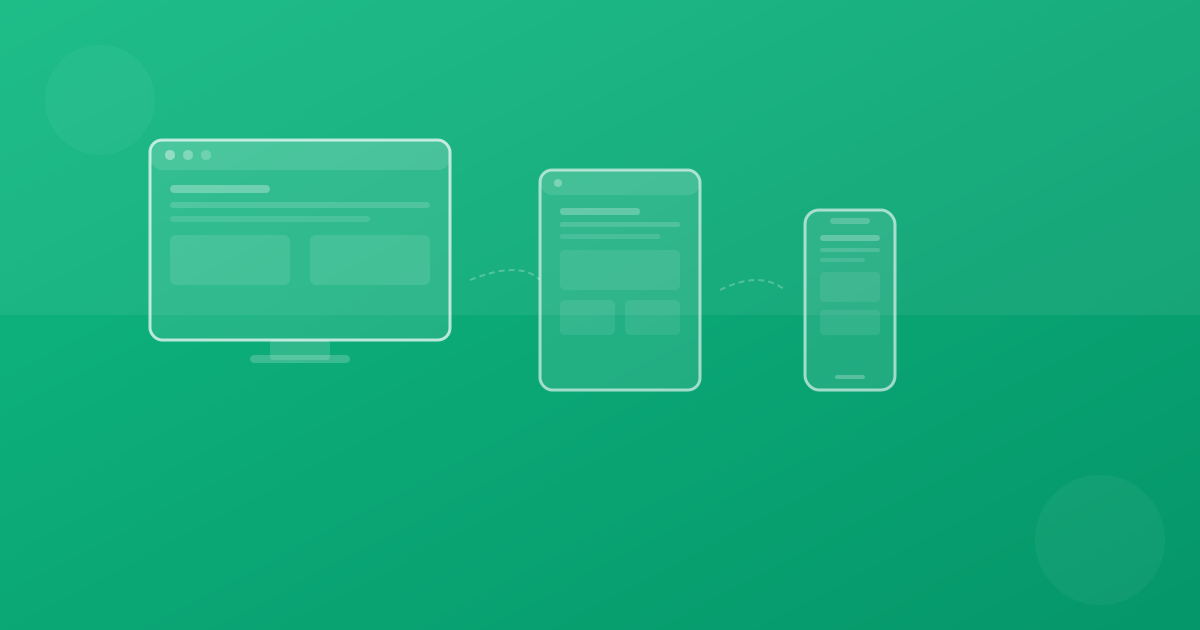
In 2015, you tested on desktop and mobile. In 2020, you added tablet. In 2026, your users are on foldable phones, car dashboards, smart fridges, and VR headsets. The number of viewport combinations you need to consider has exploded.
Manual testing across all these viewports is impossible. You would need dozens of physical devices and hours of time per release. The answer is automated responsive visual testing.
Defining Your Viewport Matrix
Start by analyzing your actual traffic data. Most apps have 5-8 viewport ranges that cover 95%+ of their users:
export const viewports = {
  mobileSm: { width: 320, height: 568 },   // iPhone SE
  mobileMd: { width: 375, height: 812 },   // iPhone 13
  mobileLg: { width: 428, height: 926 },   // iPhone 14 Pro Max
  tablet:   { width: 768, height: 1024 },  // iPad
  laptop:   { width: 1366, height: 768 },  // Common laptop
  desktop:  { width: 1536, height: 864 },  // Full HD scaled
  wide:     { width: 1920, height: 1080 }, // Full HD
}
Do not test every possible pixel width. Focus on the breakpoints where your layout actually changes and the device sizes that represent the majority of your traffic.
Automating Multi-Viewport Captures
Playwright makes it straightforward to capture screenshots at multiple viewports:
import { test, expect } from '@playwright/test'

const criticalViewports = [
  { name: 'mobile', width: 375, height: 812 },
  { name: 'tablet', width: 768, height: 1024 },
  { name: 'desktop', width: 1440, height: 900 },
]

for (const vp of criticalViewports) {
  test(`pricing page at ${vp.name}`, async ({ page }) => {
    await page.setViewportSize(vp)
    await page.goto('/pricing')
    await page.waitForLoadState('networkidle')
    await expect(page).toHaveScreenshot(
      `pricing-${vp.name}.png`,
      { fullPage: true }
    )
  })
}
Beyond Viewport Size
Viewport width is only one dimension of responsive testing. Consider also:
Orientation
Test both portrait and landscape for mobile and tablet viewports. A layout that works perfectly in portrait might completely break in landscape.
Pixel density
Retina displays (2x, 3x) can expose rendering issues that are invisible at 1x. Capture screenshots at the device pixel ratios your users actually have.
Dynamic text sizing
Users who increase their browser font size or use system accessibility settings can break layouts that assume fixed text dimensions. Test with scaled font sizes.
Dark mode
Dark mode is not just a color swap. It can expose contrast issues, invisible borders, and images that look wrong on dark backgrounds.
Handling Responsive Failures
When a responsive test fails, the diff image shows you exactly what broke and at which viewport. Common patterns:
Content overflow
Text that fits at desktop width overflows its container at mobile width. The fix is usually to add overflow-hidden, text-ellipsis, or adjust the font size.
Stacking order
Elements that sit side-by-side at desktop stack vertically at mobile, sometimes in the wrong order. Use CSS order or restructure your HTML for a logical mobile flow.
Hidden elements
Elements hidden at certain breakpoints via display: none or hidden classes. Ensure the hide/show breakpoints match your design spec.
Touch target sizes
Buttons and links that are appropriately sized for mouse interaction may be too small for touch. Responsive visual tests can flag elements that shrink below the recommended 44x44px touch target.
The ROI of Responsive Testing
Teams that automate responsive visual testing typically report:
- 60-80% reduction in responsive layout bugs reaching production
- 50% faster QA cycles for responsive design reviews
- Better designer-developer alignment because both sides see the same screenshots
The investment in automation pays for itself within the first quarter, especially if you have a global audience accessing your app on diverse devices.
Continue with ScanU
If you want to apply these techniques in production, start with a focused set of pages and run baseline screenshot comparison after every meaningful UI change. You can review plans on Pricing, implementation details in the FAQ, and product capabilities on Features.