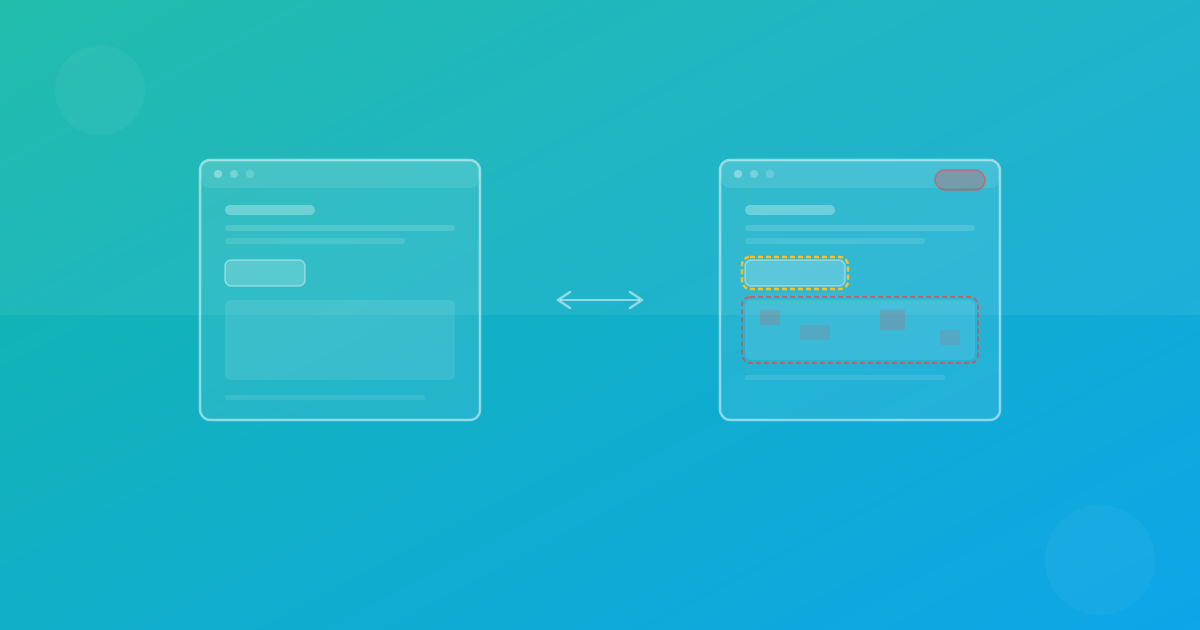
Screenshot Comparison Strategies That Actually Work
Not all screenshot comparisons are created equal. Learn the strategies top engineering teams use to get reliable visual tests without drowning in false positives.
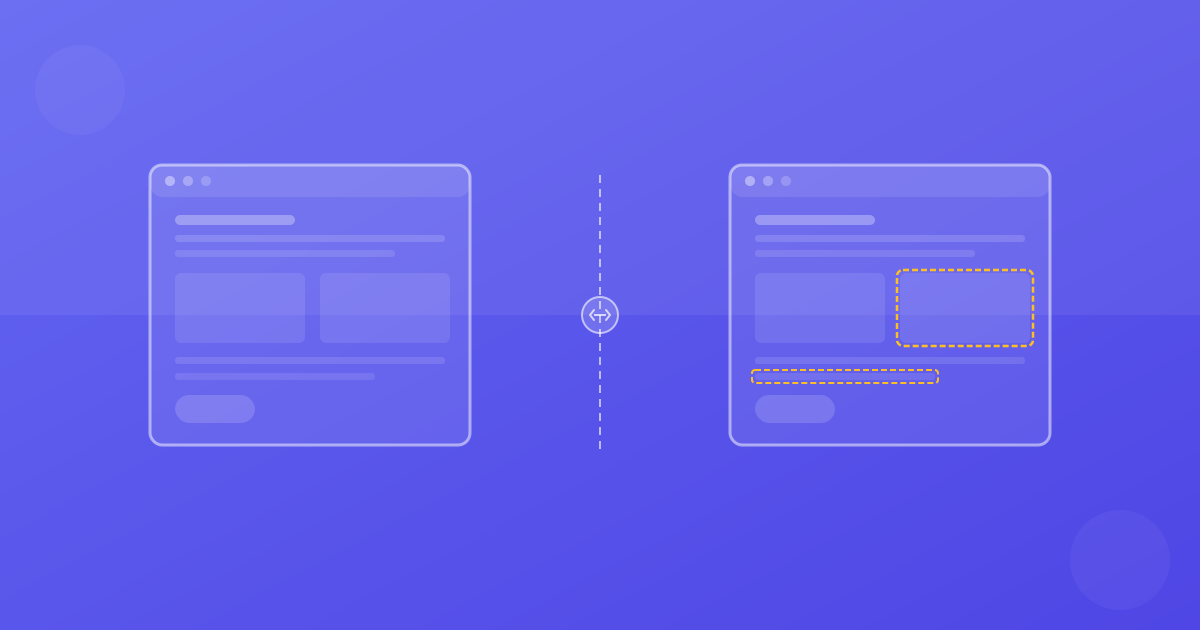
The False Positive Problem
Every team that adopts visual testing hits the same wall: false positives. Your CI pipeline flags dozens of "regressions" that are actually just rendering noise, and your team starts ignoring the results entirely. The solution is not to abandon visual testing but to adopt smarter comparison strategies.
Strategy 1: Region-Based Masking
Not every part of your page needs pixel-perfect comparison. Dynamic content areas like timestamps, user avatars, or advertisement slots will always differ between captures.
Region masking lets you define areas to ignore during comparison:
await page.screenshot({
  path: 'dashboard.png',
  mask: [
    page.locator('.timestamp'),
    page.locator('.user-avatar'),
    page.locator('.ad-slot'),
  ],
})
The key is to be surgical with your masks. Mask too little and you get false positives. Mask too much and you miss real regressions.
Strategy 2: Component-Level Snapshots
Full-page screenshots are useful but noisy. Component-level snapshots give you more precise, stable comparisons:
test('card component visual test', async ({ page }) => {
  const card = page.locator('[data-testid="product-card"]')
  await expect(card).toHaveScreenshot('product-card.png')
})
Component snapshots have several advantages:
- Smaller images mean faster comparison
- Isolated changes are easier to review
- Less noise from unrelated page elements
- Better coverage since you can test component variants
Strategy 3: Responsive Breakpoint Testing
Your users view your app on everything from a 320px phone to a 2560px ultrawide. Visual testing should cover your critical breakpoints:
const viewports = [
  { width: 375, height: 812, name: 'mobile' },
  { width: 768, height: 1024, name: 'tablet' },
  { width: 1440, height: 900, name: 'desktop' },
]

for (const vp of viewports) {
  test(`homepage at ${vp.name}`, async ({ page }) => {
    await page.setViewportSize({ width: vp.width, height: vp.height })
    await page.goto('/')
    await expect(page).toHaveScreenshot(`homepage-${vp.name}.png`)
  })
}
Strategy 4: Threshold Tuning
The difference threshold is perhaps the most important configuration in your visual testing setup. Too strict and everything fails. Too loose and real bugs slip through.
A good starting point:
- 0.1% pixel difference for component-level tests
- 0.5% pixel difference for full-page tests
- 1-2% pixel difference for pages with animations or dynamic content
Monitor your false positive rate over time and adjust thresholds per test as needed.
Strategy 5: Baseline Management
Your baselines are the source of truth for what your UI should look like. Managing them well is critical:
Update baselines intentionally
Never auto-update baselines on failure. Every baseline update should be reviewed and approved by a team member who understands the expected change.
Version baselines with your code
Store baseline images in your git repository alongside the code they test. This ensures baselines stay in sync with the UI state at any point in your commit history.
Branch-specific baselines
When working on feature branches that intentionally change the UI, maintain branch-specific baselines to avoid blocking other developers.
Putting It All Together
The most effective visual testing setups combine multiple strategies:
- Component-level snapshots for critical UI elements
- Full-page screenshots for key user flows
- Responsive breakpoint coverage for mobile and desktop
- Region masking for dynamic content
- Tuned thresholds per test category
This layered approach gives you comprehensive coverage with a manageable false positive rate.
Continue with ScanU
If you want to apply these techniques in production, start with a focused set of pages and run baseline screenshot comparison after every meaningful UI change. You can review plans on Pricing, implementation details in the FAQ, and product capabilities on Features.